
Link Annual Recurring Revenue to Initiatives
← Back to Initiatives section
-
Availability
- Plan: All
-
Roles and Permissions
- View: All users
- Edit company Annual revenue: Admin
- Update account currency: Admin
ProdPad can now show the total linked revenue for an Initiative using the Annual revenue values stored against Companies. This helps you understand the business impact of your strategic bets and prioritise Initiatives based on real revenue data.
Total revenue is calculated from the Companies linked to Feedback associated with an Initiative. If multiple pieces of feedback are linked from the same company, that company’s revenue is only counted once.
For Initiatives, Total revenue is calculated from feedback linked directly to the Initiative, as well as feedback linked to Ideas that are connected to the Initiative.
This means Initiative revenue can include:
- Feedback linked directly to the Initiative
- Feedback linked to Ideas that are linked to the Initiative
Idea revenue is calculated from feedback linked directly to the Idea only.
To use Total revenue, first make sure your Companies have an Annual revenue value added to them.
Open a Company record and enter a numeric value into the Annual revenue field.
Only numeric values are supported, and the maximum allowed value is 9,999,999,999. Once Annual revenue has been added to your Companies, any linked Initiatives will display the aggregated Total revenue value based on associated feedback.
You can view Total revenue directly on Initiative cards in your roadmap.
If an Initiative has linked revenue, you’ll see a rounded currency value displayed on the card using your account currency followed by /yr (for example, $/yr, £/yr, or €/yr).
If an Initiative has no linked feedback or revenue, this value will not be shown on the card.  By default, the Total revenue value is not shown on Initiative cards, but you can enable it using display options.
Open the Display options menu in your roadmap view and toggle Total revenue on or off. To view Total revenue on an individual Initiative, open the Initiative canvas.
The Total revenue attribute appears in the Initiative attributes section.
If the Initiative has linked revenue, the value will be shown using your account currency followed by /yr.
If no revenue is linked, you’ll see No linked revenue. You can also use Total revenue to filter your roadmap views.
Open the Filters menu and select Total revenue.
From there, enter a minimum value, a maximum value, or both to narrow your Initiatives by linked revenue.
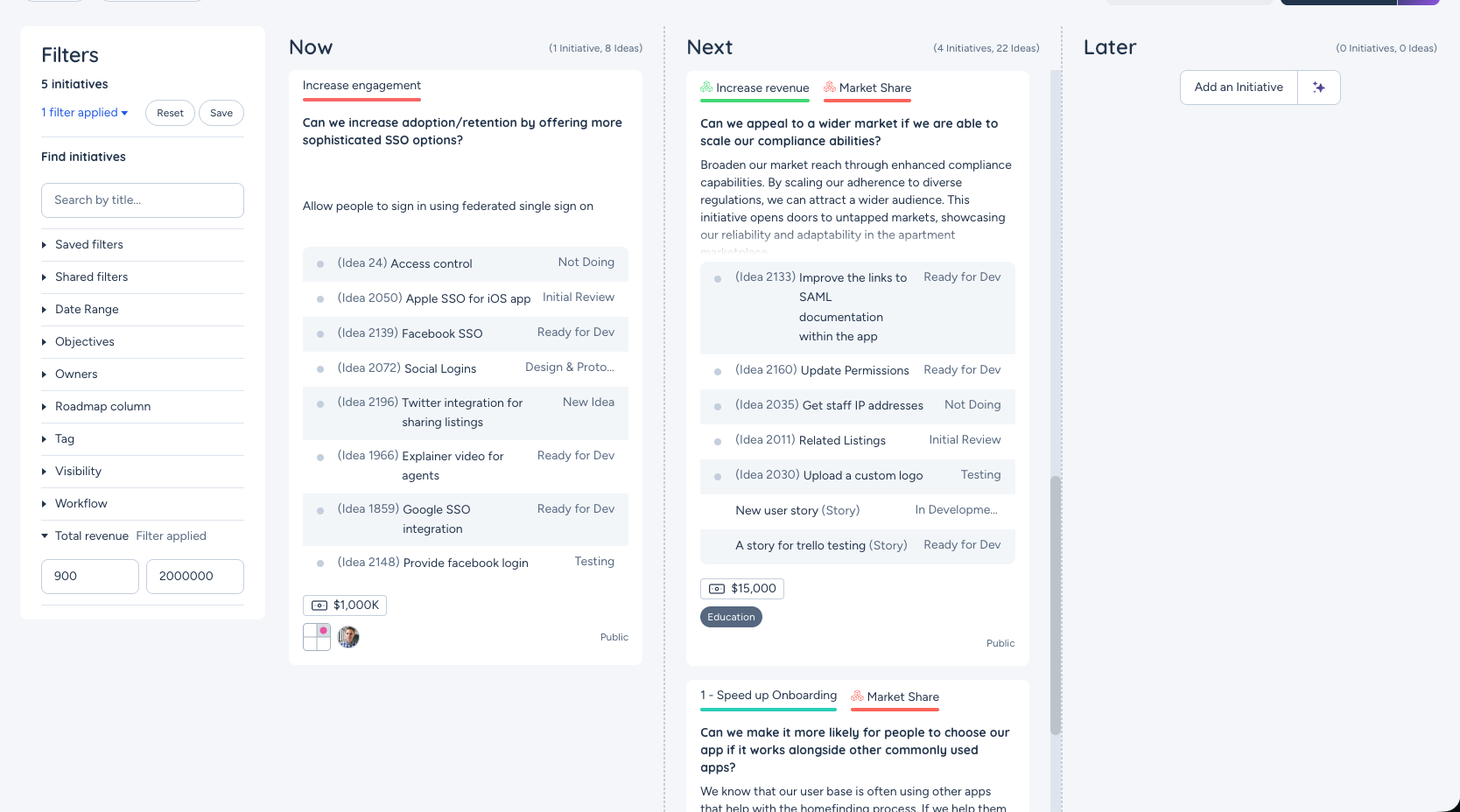
To remove the filter, reset or clear your filters to return to the full roadmap view.Your account currency controls how revenue is displayed throughout ProdPad.
Admins can update this in Account Settings. Editors can view the currency setting, but can’t change it. Use this feature when you want to understand the business value behind your Initiatives and prioritise your roadmap based on revenue impact alongside strategic goals.