
Introducing ProdPad's new navigation bar!
Woah, look at that! The ProdPad navigation bar has a brand-new look and feel. We've given it a good old revamp to keep things feeling fresh and to optimise the way you use ProdPad. As more new features are rolled out in the future, we felt it was time to spruce up the navigation bar to help support ProdPad's growth. Read on below to learn more about the changes!
Why the change?
We believe the new navigation bar will provide you with an improved and more efficient experience when using ProdPad. Below are the reasons why we think this is the right move to make:
- The new design helps you focus on what’s most important – your content. Moving the main navigation to the left-hand side and introducing the collapsed mode makes better use of the screen’s real estate and leaves more room for your roadmap cards, ideas, and feedback.
- Quicker access to roadmaps. With roadmaps being one of the most visited areas of ProdPad; it didn’t feel right having it hidden away. We've put this area into the spotlight so it’s easier to get to grips with from day one.
- A shorter and more refined journey between different parts of the app. The new smart system remembers where you left off, meaning less switching between views and states when you come back to Ideas or Feedback areas. This makes switching between content much more effective!
- A cleaner, more simplified look and reduced cognitive load. The old navigation bar was getting pretty busy with all the new features being rolled out over time, so we felt a new approach was needed to organise the menu items. Ever struggled to find the Add button in a row of similar-looking icons? Never again!
- The new navigation bar design is also fully accessible. For a tool used by many, accessibility should be paramount. We are proud to say the new side menu meets the current accessibility requirements and drastically improves the quality of life for those using keyboard navigation.
The old menu
By now, you're probably accustomed to using the old ProdPad navigation bar:

The new look!
Take a peak below at the new look! 😍

What's changed?
As you can see, the old navigation bar was native to the top of ProdPad but is now located on the left-hand side. The below screenshot is of the old navigation bar, and we've numbered each icon below that has now moved to a new home.
 Take a look below to see where the icons have now moved to:

As you can see from the old navigation bar screenshot, 7 (Sandbox mode) and 12 (Apps) have been removed from the navigation bar and can now be found in different locations, which are listed below. Let's break down the changes:
- Dashboard - We have a new icon for the Dashboard located on the top left-hand side. The dashboard serves as your home for quick links to the features you need to access daily in order to keep your ProdPad organized.
- Roadmaps - To access your Roadmap, click on the Roadmaps icon located on the upper left-hand side. You will be directed to the Product Portfolio page, where you can now click on the Product tile for direct access to your Roadmap.
- Ideas - You can find the ideas icon on the upper left-hand side. Clicking on this option will take you directly to the Ideas page, where you can easily manage your Unsorted, Backlog, and Archived ideas. Furthermore, the page now remembers where you last were, allowing you to quickly pick up where you left off.
- Feedback - The Feedback Icon can be found on the upper left-hand side. Clicking it will take you directly to the Feedback page where you can manage Inbox, Reviewed, and Archived Feedback, as well as access Signals, Companies, and Contacts. Similar to Ideas, the Feedback page will remember your previous location, allowing for quick pick-up from where you left off.
- Personas - Lastly for the upper left-hand side is the Personas icon. When selected, this option will take you directly to the Personas page.
- Search - The search box can now be found on the bottom left-hand side.
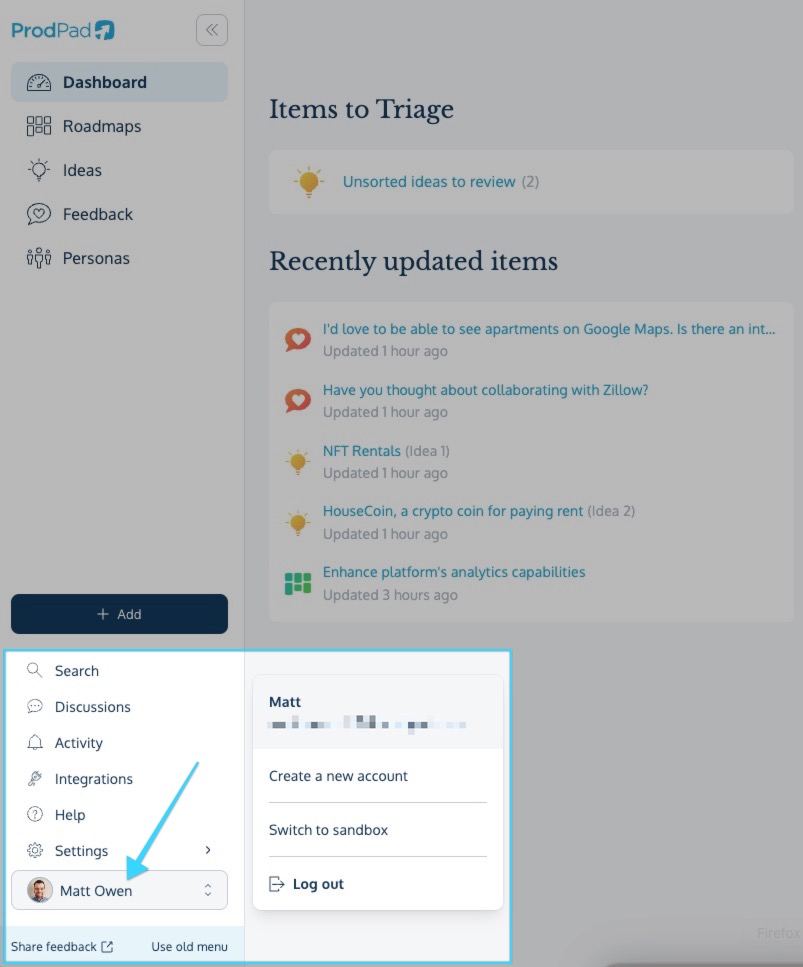
- Sandbox - The Sandbox icon has now moved to a drop-down menu that can be accessed by selecting your Account on the bottom left-hand side followed by Switch to sandbox.

- Help - The Help icon can now be found on the bottom left-hand side. Selecting this option will allow you to access the support resources within the platform.
- Activity - The Activity icon can also be found on the bottom left-hand side. Selecting this option will open up the activity slide-out menu on the right-hand side of the page.
- Discussions - The Discussions icon is now located on the bottom left-hand side. This option will open up the discussion slide-out menu on the right-hand side of the page.
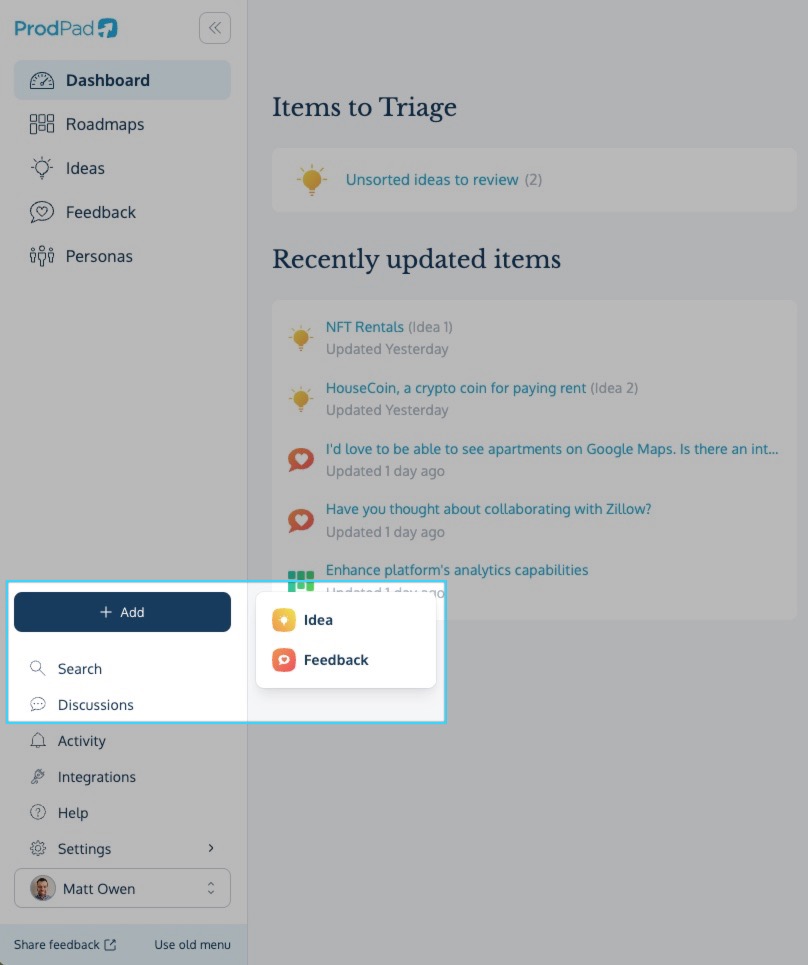
- Add - You can find the new “Add” button on the left-hand side. Selecting this option will open a drop-down menu that lets you add ideas and feedback to your ProdPad account from anywhere in the app.
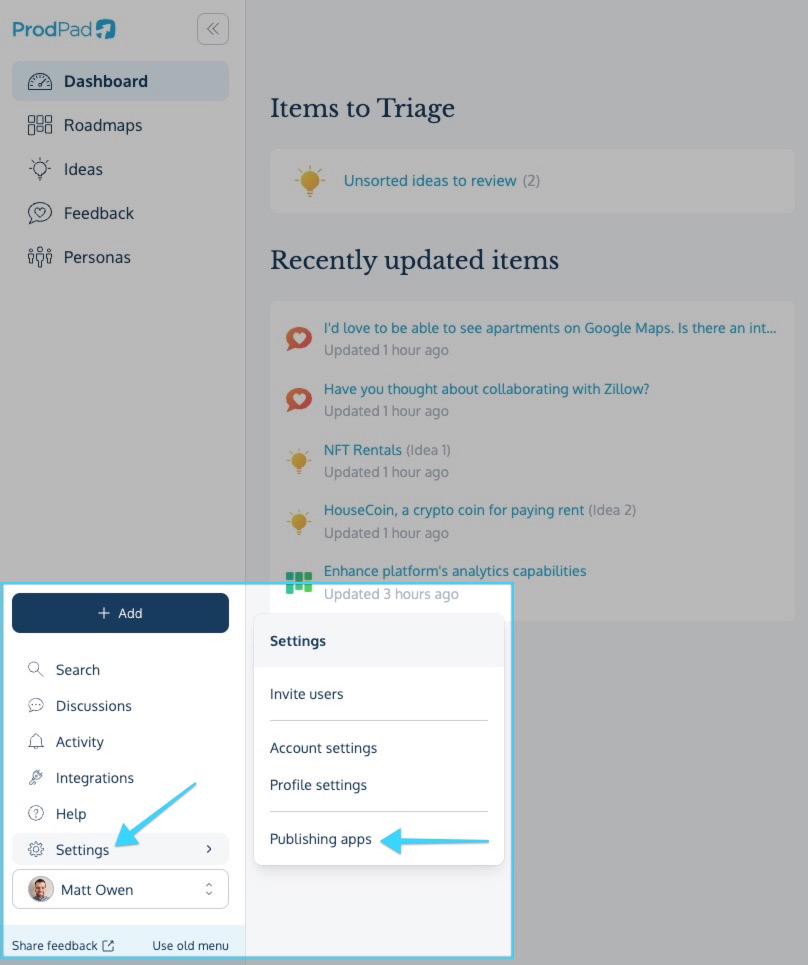
- Apps - The app icon is now located in the settings drop-down menu, and can now be accessed by selecting Settings from the bottom left-hand side followed by Publishing apps. Once Publishing apps is selected, the Apps slide-out menu will open on the right-hand side of the page as usual. (Note - For our Legacy users, this option will appear as Apps & add-ons).
- Avatar/Account - Lastly, your Avatar/Account can be found on the bottom left-hand side. From the Avatar/Account menu, you'll be able to switch between accounts, create a new account and access the Sandbox mode.

Other Notable Changes
Other notable changes include:
- Integrations - We've given integrations a new home, which can now be found on the bottom left-hand side. This should make navigating to the integration page easier and faster!

- Invite users - To invite users to your account, just select the Settings icon followed by Invite users.
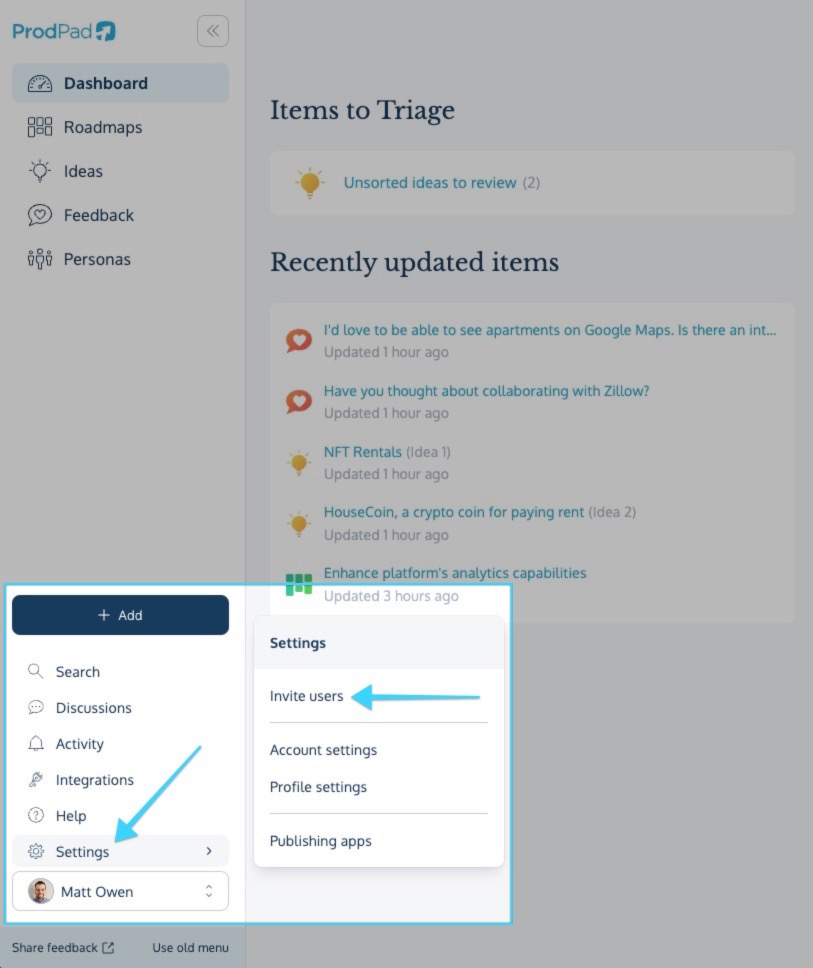
- Account settings - To access your account settings, you'll need to select the Settings icon followed by Account settings.
- Profile settings - To access your profile settings, select the Settings icon followed by Profile settings.
- Share feedback - This allows you to provide feedback on how the new navigation is working for you. Do you have any thoughts? Simply select the Share feedback icon located on the bottom left-hand side of the navigation bar, and let us know what you think.
- Use old menu - If you’d rather use the old menu for now, you can select the Use old menu option from the bottom left-hand side to switch to the old menu. We plan to sunset the old menu completely by the end of 2023, at which point the Use old menu option will be removed. Please note, this option isn't available for trialists.
- Collapse navigation bar - To collapse the navigation bar, just press the << button located on the top left-hand side. You can then open it again at any time by pressing the >> button.

Feedback
As always, we'd appreciate any feedback you have regarding how you're finding the new navigation layout! We understand this is a big change, but we believe it's for the better and hope you'll find the new navigation bar both easier and more efficient to use. If you have any thoughts on what you like or dislike regarding the change, please share them with us here.